 BABEL TOKEN
User guide
Everything BABEL TOKEN does, in the order you'll meet it. Names in bold are the labels you see on screen; monospace is something you'd type or paste.
Getting started
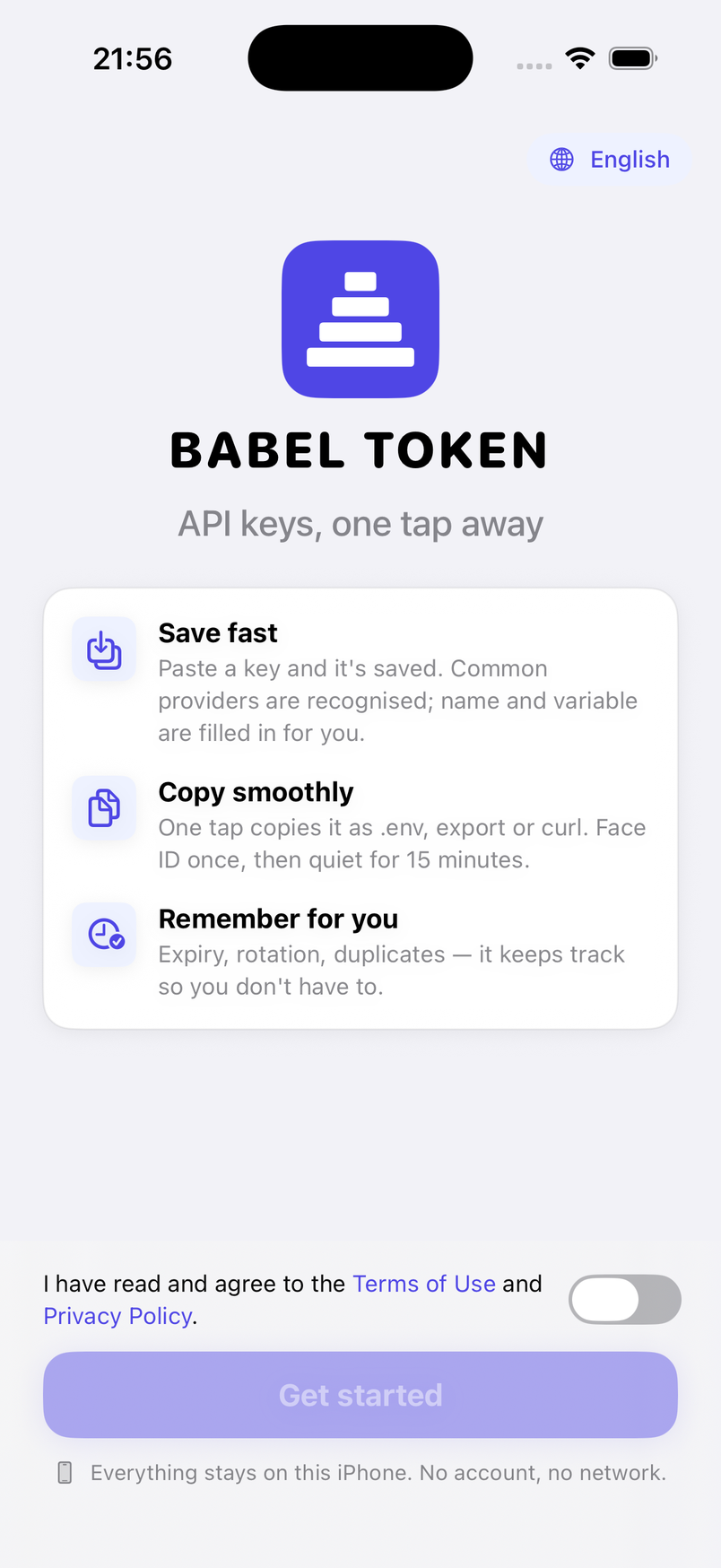
The first launch is one screen: what the app does in three lines, a box to tick that you've read the Terms of Use and Privacy Policy (both open in place), and Get started. There is no account to create and no master password to invent — the key that encrypts your secrets is generated at random and stored in the iOS Keychain before you notice.
The interface comes in English and Traditional Chinese (Hong Kong) and follows your iPhone's language. A menu on the welcome screen — and later Me › Settings › Language — lets you fix it to one or the other.
You land on the Keys tab with three short hints and a paste button. The bottom bar holds Keys, Projects, Health and Me by default; under Me › Tab bar you can swap in Generator, Backups or Trash and keep four or five tabs.
Saving a key
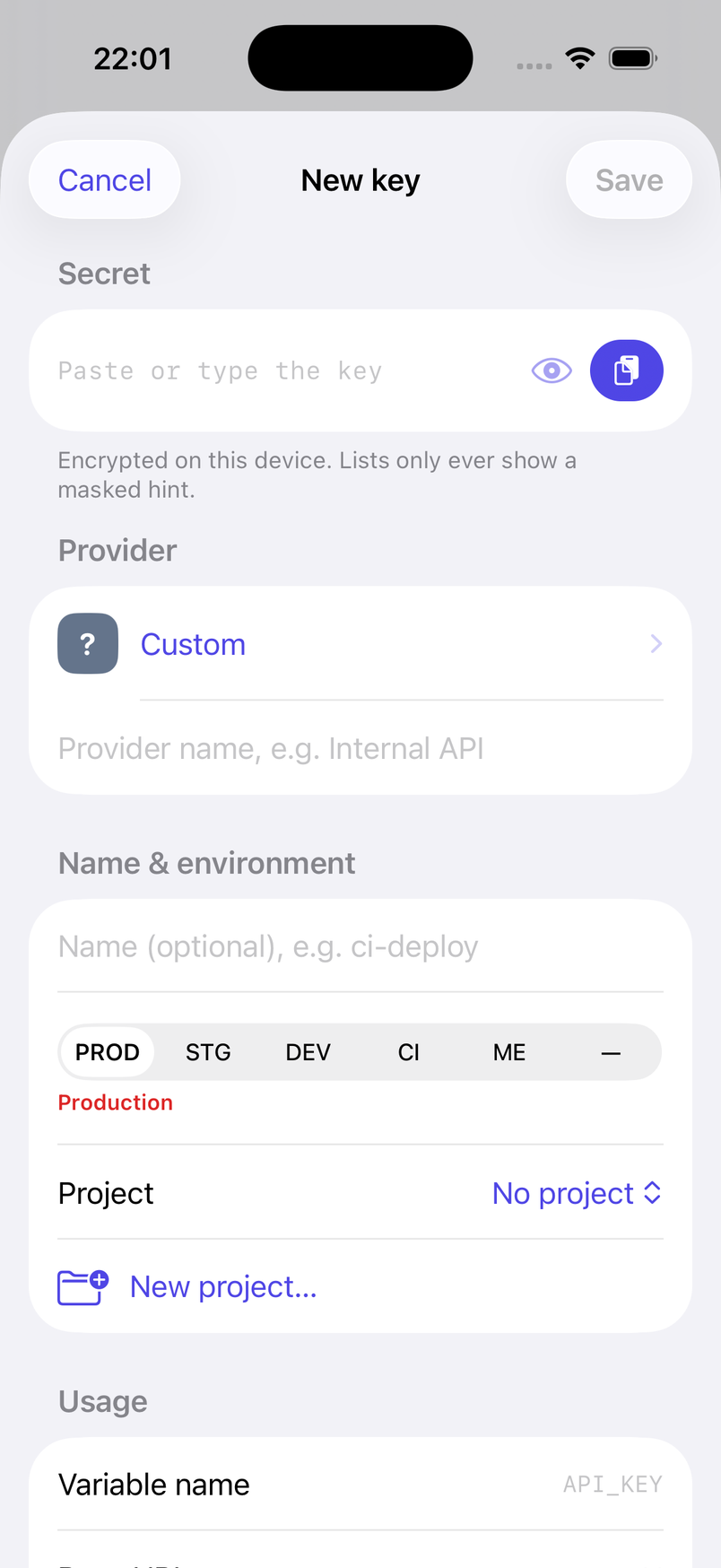
Tap the paste button on the Keys tab. It is the system paste button, so it reads the clipboard only at the moment you press it and iOS shows no 'pasted from' banner. Long-press the app icon on the Home Screen for Paste a new key and Copy last used key without opening the app first.
The New key form opens with the value in place and a line such as Looks like OpenRouter · confidence high. The provider is worked out from the key's prefix and shape (sk-or-v1- is OpenRouter, ghp_ is GitHub, AKIA is AWS); the variable name, Base URL, type and environment are filled in from the catalogue, and a Stripe sk_test_ key lands in Development on its own. Add a name like ci-deploy, pick a project if you like, and Save.
Some prefixes are shared — sk- alone could be OpenAI, DeepSeek, Moonshot or several others — so the form shows Also matches: with the other candidates one tap away. A value nobody matches is saved under Custom with a name you give it. A wrong guess only changes the badge, the default variable name, the curl template and the documentation links; the value itself is stored the same way regardless.
Providers whose credentials come in parts have the parts: AWS takes an Access Key ID and a Secret Access Key, Azure OpenAI an Endpoint and an API Key, Twilio an Account SID and an Auth Token. Paste a single KEY=VALUE line and the variable name comes along too; paste several lines and the app offers a .env import instead.
The Keys tab
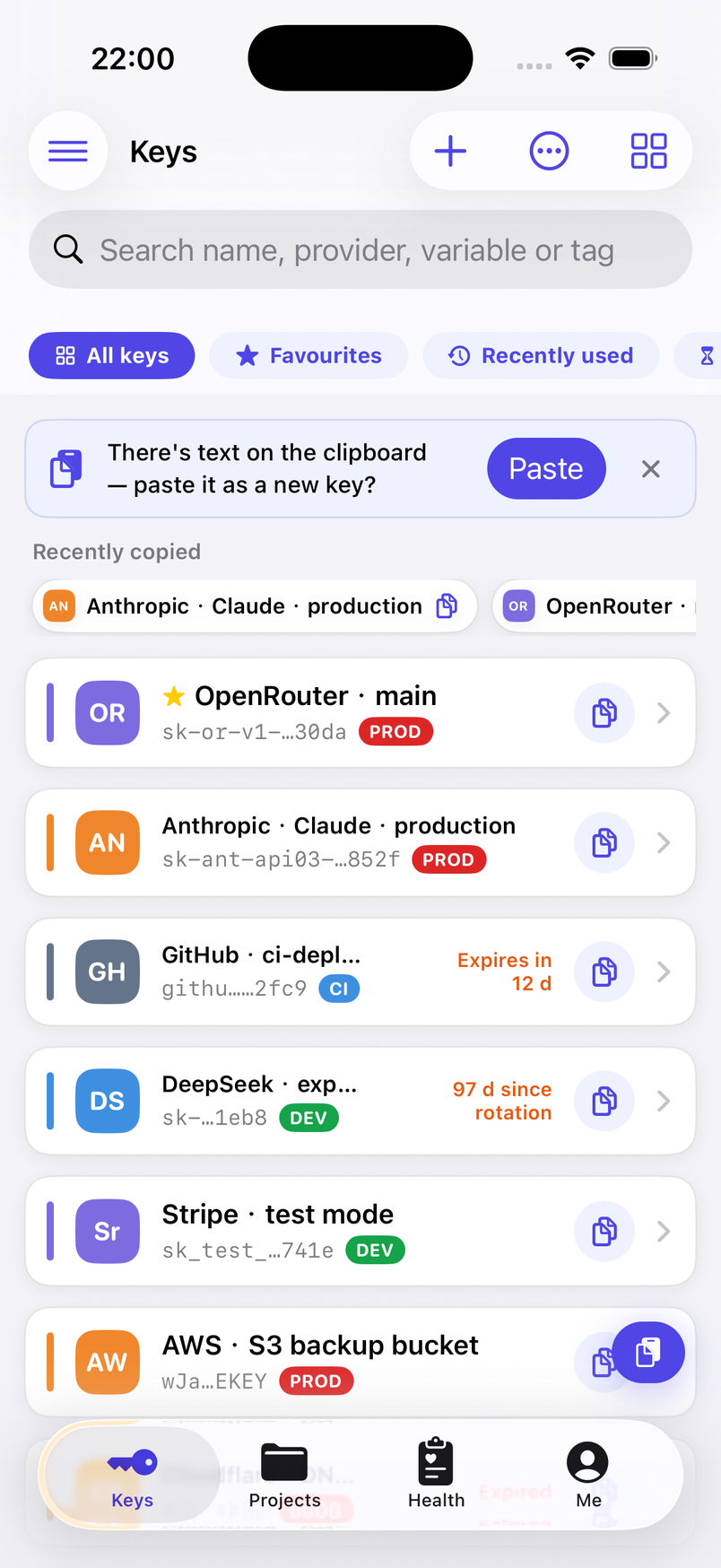
Each row shows the provider badge, Provider · name, a masked hint made of the provider prefix and the last four characters (sk-or-v1-…3f9a), an environment tag such as PROD or DEV, and — when it matters — Expires in 12 d, Expires today, Expired or, once a value is 90 days old, 97 d since rotation. Nothing here needs unlocking: hints are derived when a key is saved and stored alongside it.
Search matches names, providers, variable names, tags, Base URLs and identifier fields — never the secret values. The chips above the list are smart groups: Favourites, Recently used, Expiring soon, Expired, Long-lived, Duplicates, Rotation due, and Revoked / archived; tap a project in the side menu to filter to it.
Swipe a row from the left, all the way, to copy it; a shorter swipe also offers Favourite. Long-press for Copy as, Copy to Mac, favourite and Move to project; Select in the More menu picks several rows for moving or deleting together. A Recently copied strip at the top brings back the last few keys you used.
When you return to the app with text on the clipboard, a banner offers to paste it as a new key. The app checks only whether text is present — it does not read the clipboard until you tap paste. Hide masks in the More menu blanks even the hints for as long as the app stays open, for working on a train.
Copying
The button at the end of each row copies the key in the format it was last copied as; a key that hasn't been copied yet uses the Default format from Settings (the raw value, out of the box). Long-press the row, or use Copy as… on the detail page, to choose one of six: Raw value; .env line (OPENROUTER_API_KEY=sk-or-…); shell export (export OPENROUTER_API_KEY=…); HTTP header (Authorization: Bearer …, or the provider's own header such as x-api-key); a curl example that calls the provider's /models endpoint; and JSON.
Multi-field keys such as AWS produce all their variables at once, and a custom variable name set on the key wins over the catalogue default.
Copies go through the system clipboard with an expiry. By default Universal Clipboard is allowed and the clipboard clears after 60 seconds: copy on the iPhone, paste in the terminal on your Mac, done. Under Me › Settings › Clipboard you can switch to This iPhone only · clears in 30 s; Copy to Mac in the long-press menu overrides that for a single copy.
Face ID is asked for when a secret has to be decrypted — to copy or reveal it, to export, to delete or restore from the trash — never for browsing. After a successful check the app stays quiet for the grace period — 15 minutes by default; choose every time, 1, 5 or 15 minutes, or 1 hour under Settings › Security, or tap Lock now to end it early. Face ID can be turned off altogether, in which case anyone holding your unlocked iPhone can copy your keys — the setting says so in as many words.
A key's detail page
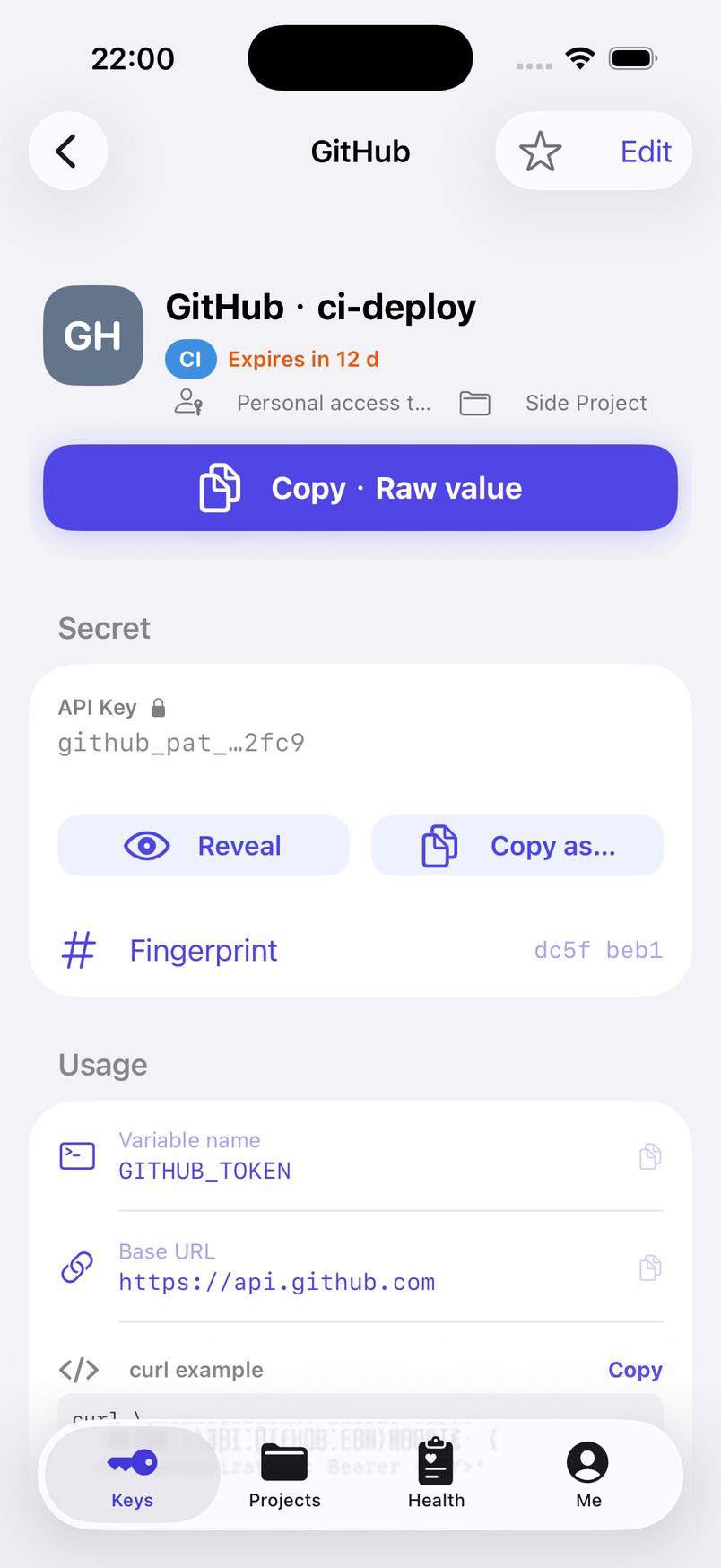
The top card shows the masked value with Reveal (plain text hides itself again after 10 seconds) and the Copy · format button. Copy as… lists all six formats and Copy to Mac. The Fingerprint — the first characters of a SHA-256 hash of the value — lets you check whether a value in a config file is this key without showing either; tap to copy it.
Usage holds the Variable name, Base URL and a curl example with <KEY> standing in for the value until you reveal it; each is a tap to copy. Details has the type (API key, personal access token, client secret, webhook secret, service account), scopes, tags, expiry date, Rotation cycle, last use and encrypted Notes. Links open the provider's Documentation and Console in Safari — the app itself never goes online.
Mark as revoked keeps the record but leaves the key out of project .env copies and the hygiene score; deleting moves it to the trash. Replace a secret with a new one and the old value is kept, encrypted, under Rotation history — long-press an entry to copy it back if a rollout goes wrong.
Projects
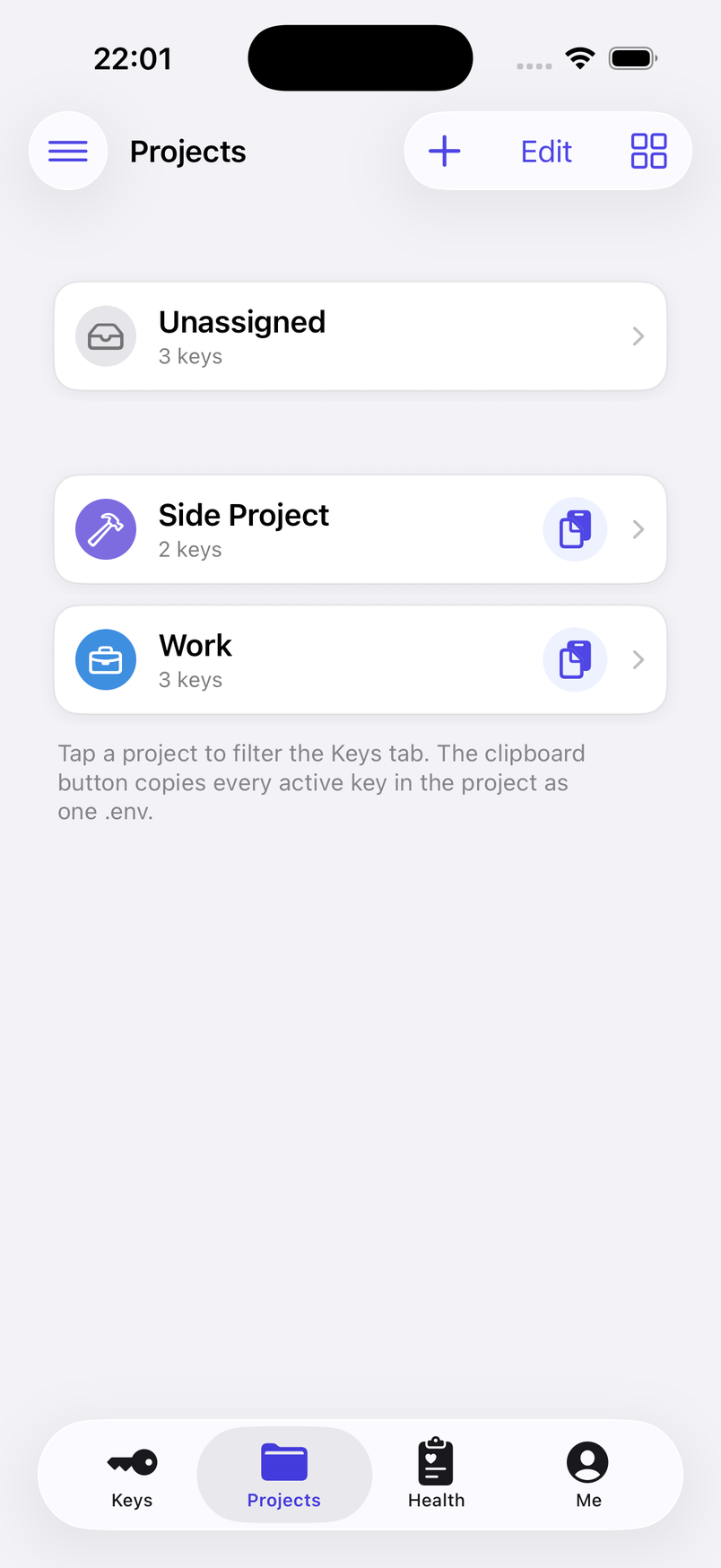
A project is a folder for the keys one codebase needs — my-saas-backend, say — with a colour and an optional icon. Assign a key from its form, from the long-press menu (Move to project), or in bulk with Select. Tapping a project on the Projects tab filters the Keys tab to it; deleting a project sends its keys back to Unassigned and deletes nothing.
The clipboard button on a project row runs Copy .env: every active key in the project, one VARIABLE=value line each with the key's name as a comment, ready to paste into a .env file. Two keys claiming the same variable name get a numbered suffix rather than overwriting each other.
Export .env (Me › Import & export) does the same for a project you choose and lets you Share as .env file to Files, AirDrop or your Mac. The preview stays masked until you unlock; the file itself is plain text — don't leave it in Downloads or commit it to git.
Importing .env and JSON
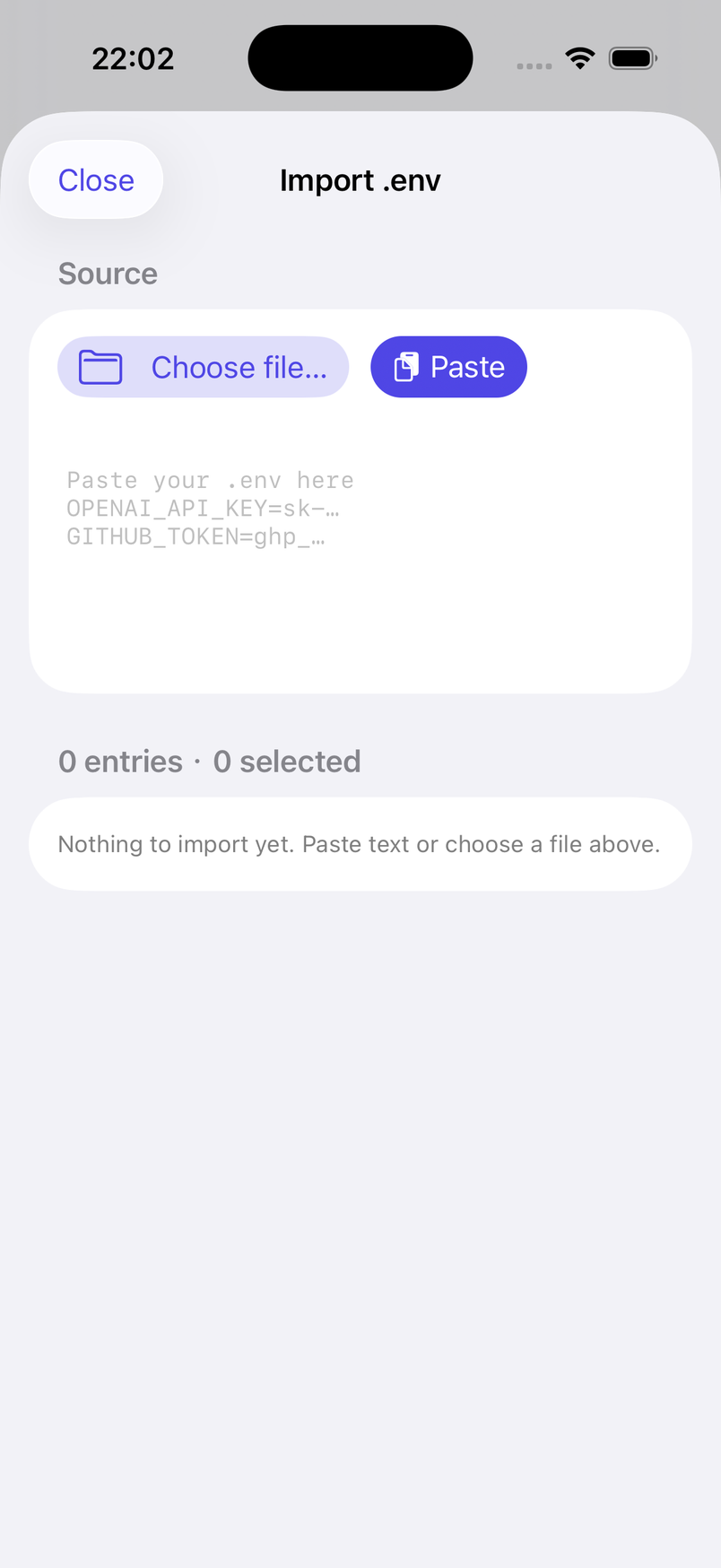
Import .env (Me › Import & export, or the button on the empty Keys tab) takes a .env pasted into the box or opened with Choose file…. Every KEY=VALUE line becomes a draft key, recognised from its variable name and prefix — OPENROUTER_API_KEY is a strong hint on its own. export prefixes, quotes and trailing comments are handled; comment lines are skipped.
The preview lists each draft with its provider badge, which you can change per row. Lines that don't look like keys, or whose secret is already in your vault, are unticked by default with a note saying why; tick them to import anyway. Choose a target project — an existing one, a new one, or none — and tap Import N keys.
Import JSON reads a flat dictionary of strings, {"OPENAI_API_KEY": "sk-…"}, the way other tools export it. If the file turns out to be a BABEL TOKEN backup the app says so and offers Restore as backup, so projects, expiry dates and multi-field keys aren't flattened away. A .env or JSON file shared to BABEL TOKEN from another app lands in the same importers.
Generating a secret
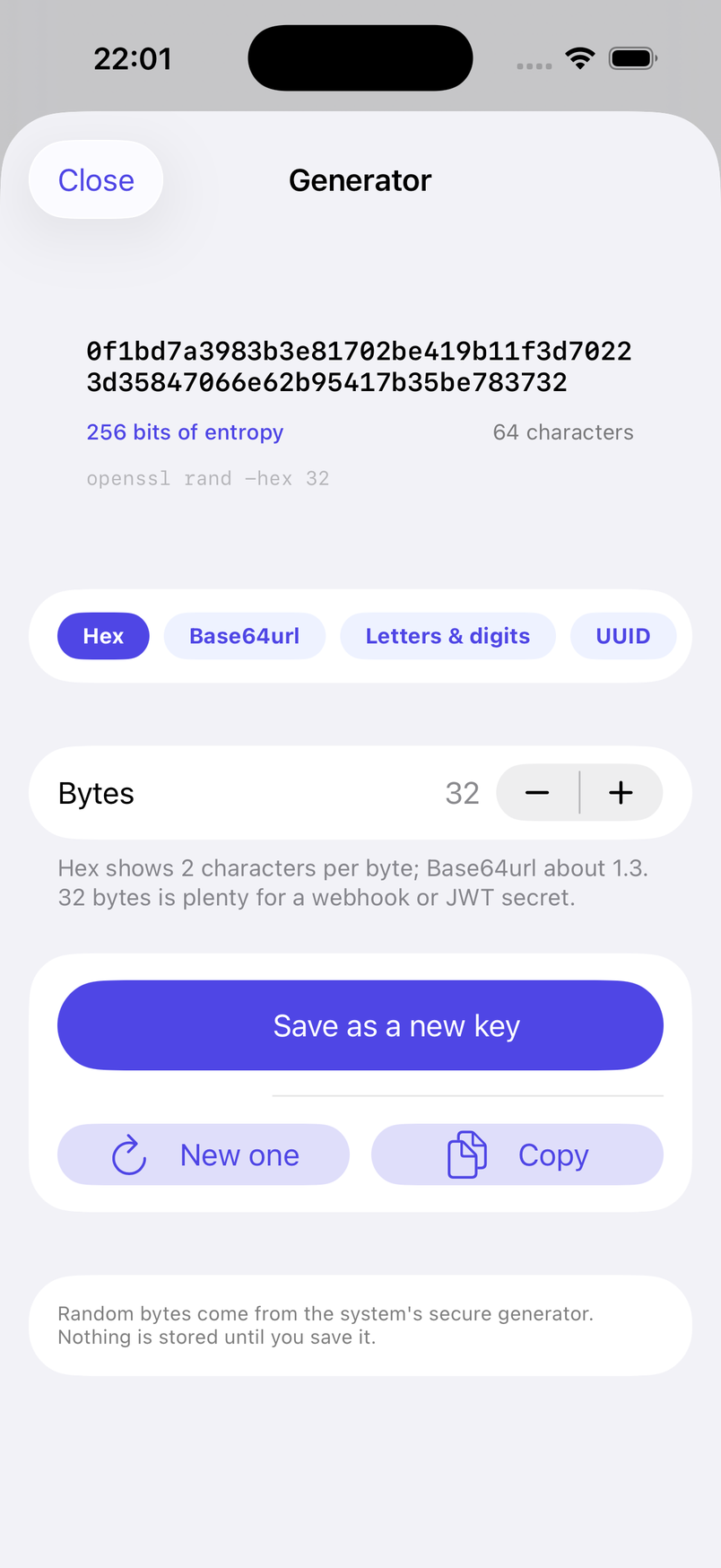
The Generator (Me › Tools, or as a tab) makes a fresh value when a service leaves that to you: Hex or Base64url of a chosen number of bytes for webhook and JWT secrets, Letters & digits of a chosen length, a lowercase UUID, or a Passphrase of words from the EFF long list. It shows the entropy in bits as you adjust.
Random bytes come from the system's secure generator. Nothing is stored until you tap Save as a new key; Copy puts the value on the clipboard with the usual timer.
Hygiene score
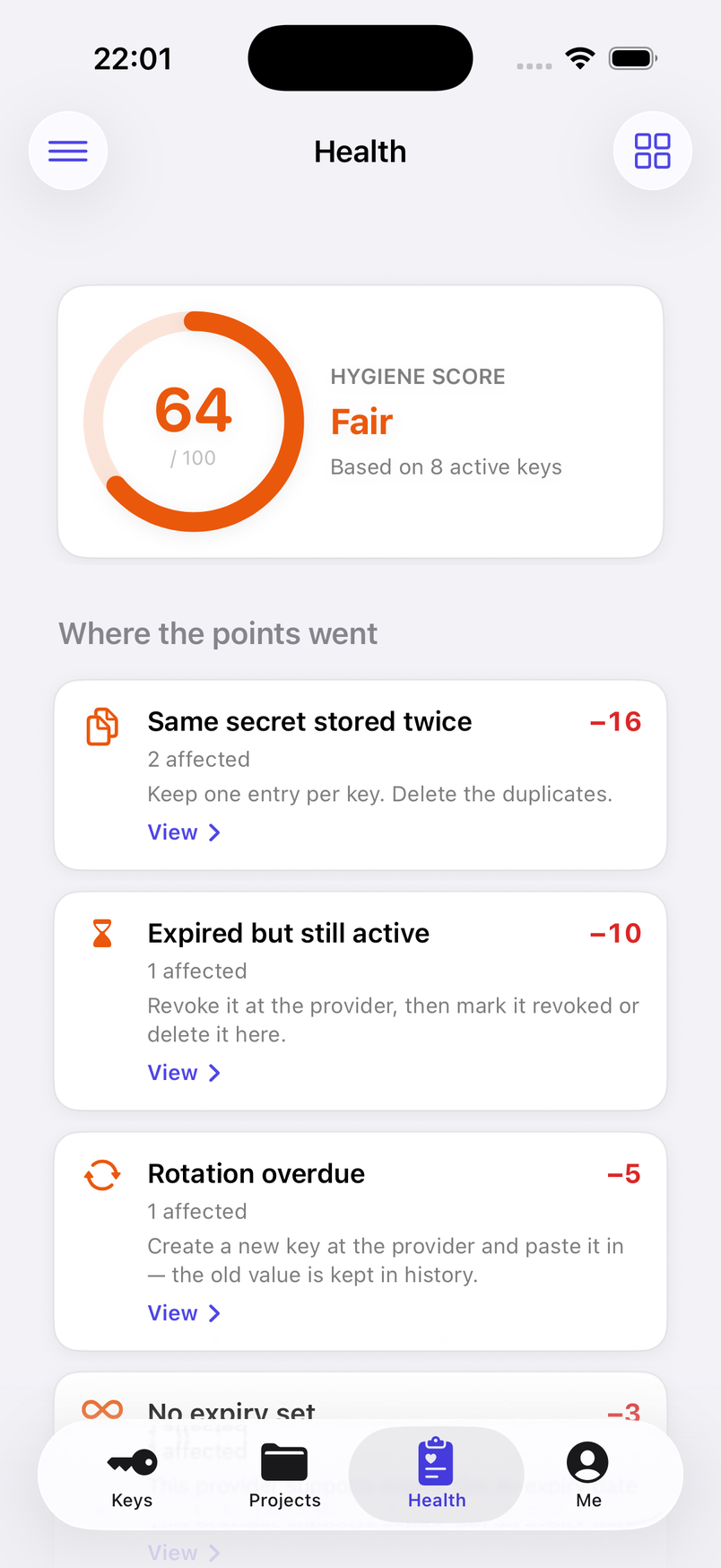
The Health tab scores your active keys from 0 to 100 and lists Where the points went. Seven things cost points, each a fixed amount per key up to a cap, and the caps add up to exactly 100 — so a vault with every problem scores zero and every point has a name.
Expired but still active (10 each, up to 30). Rotation overdue (5, up to 20). No expiry set on a provider whose keys can expire (3, up to 12). Same secret stored twice (8, up to 16). Key-like text in notes (5, up to 10). Production key without a project (2, up to 6). No variable name (1, up to 6). Tap a deduction to see the keys behind it and jump straight to one; each comes with a one-line piece of advice.
The score is computed on the iPhone from key metadata and fingerprints, so it works while secrets are locked. The only check that needs the plain text — key-like text in the notes — waits until you unlock, and the page says so. Bands: below 50 Needs attention, 50–69 Fair, 70–89 Good, 90 and up Excellent. The same findings feed the smart groups on the Keys tab: Expired, Long-lived, Duplicates and Rotation due.
Safety net
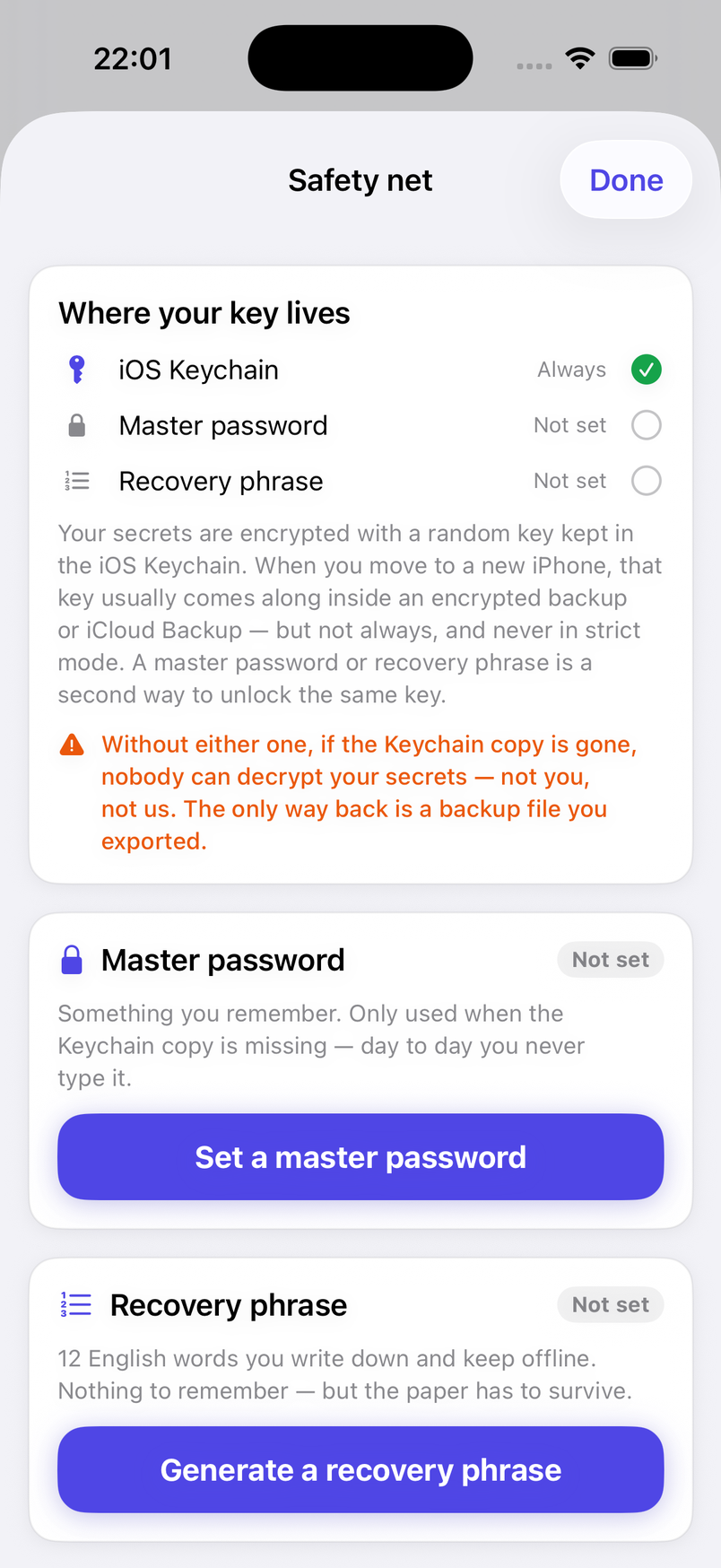
Your secrets are encrypted with a random 256-bit data key that lives in the iOS Keychain. Day to day that is all there is: no password, and Face ID only when a value is taken out. When you move to a new iPhone, the Keychain entry normally comes along inside an encrypted computer backup or iCloud Backup — but an unencrypted computer backup leaves it behind, and so does strict mode.
The Safety net (on the Me tab) adds a second way to unlock the same data key: a master password of at least 6 characters, a 12-word recovery phrase, or both. Neither is used day to day; each is asked for only on a device where the Keychain entry is missing, after which the key is put back into that device's Keychain. The app suggests setting one up at your third key, at your first production key and before your first export — three times at most, then it stops asking.
Be clear about the cost of skipping it. If the Keychain entry is gone and you set neither a master password nor a recovery phrase, the encrypted secret values cannot be decrypted — not by you, not by us, not by Apple. Names, providers and settings are still readable; the values come back only from a backup file you exported. We hold no copy of your data key, your password or your phrase, and there is no reset.
Strict mode (Settings › Advanced encryption) binds the Keychain entry to this iPhone and its current Face ID enrolment: reading it always requires Face ID, re-enrolling Face ID invalidates it, and it is left out of every backup. It exists for people who want that trade-off; set up the safety net first, because a new iPhone then starts only from a password, a phrase or a backup file.
Backups
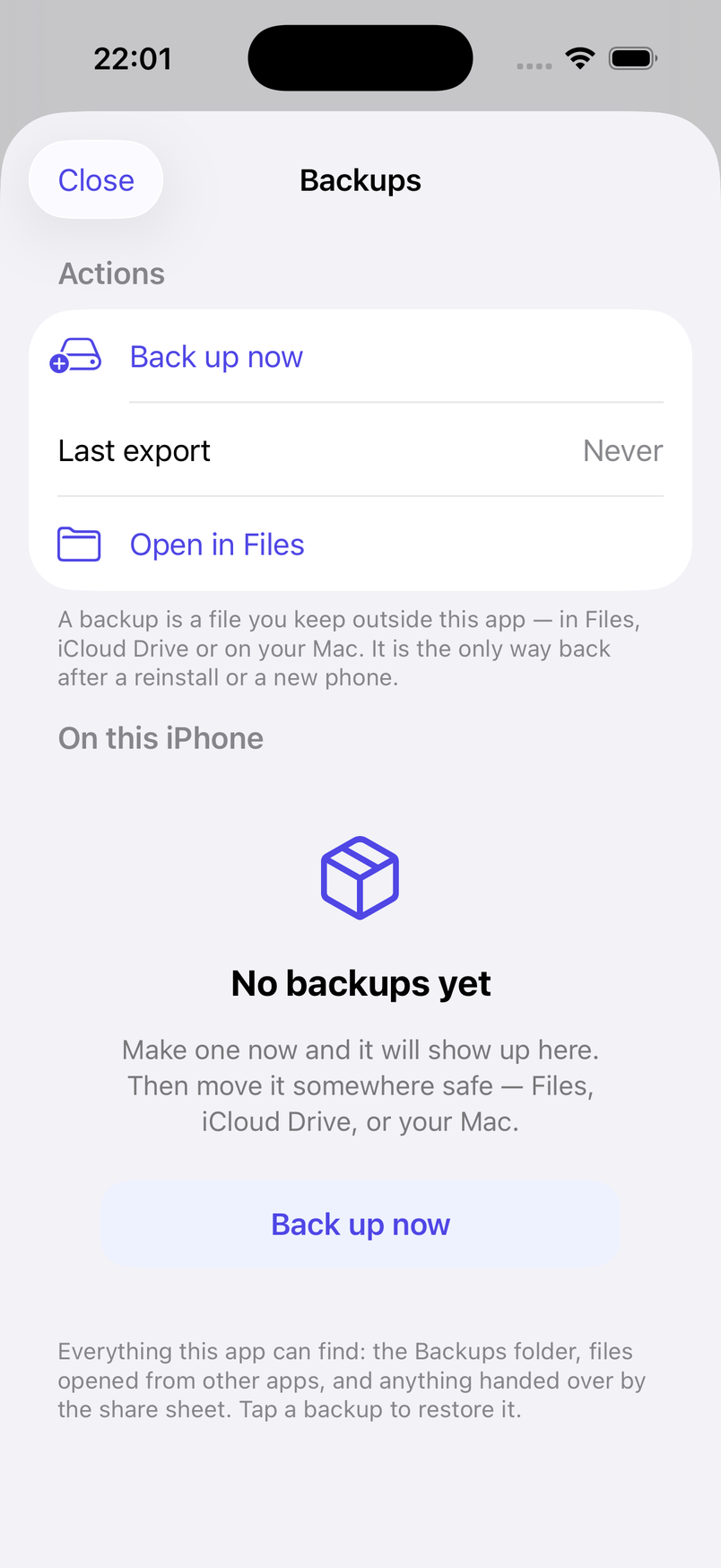
A backup is a single .babeltoken file holding your vault: keys, projects, notes, expiry dates. Export backup (Me › Import & export, or the Backups page) asks for a backup password of at least 6 characters and seals the file with AES-256-GCM; leave it empty and the file is plain JSON, which the app makes you acknowledge first. The backup password is separate from any master password and cannot be recovered — keep it somewhere you'll still find in three years.
Save to Backups folder keeps a copy under Files › On My iPhone › BABEL TOKEN › Backups, which disappears if the app is deleted, so also Share… a copy to iCloud Drive, AirDrop or your Mac. By default the app reminds you to export every 14 days (Settings › Backup reminder, by days or by launches); only backup and JSON exports count — a .env export doesn't reset it, because it holds one project and no expiry dates.
The Backups page lists every backup the app can find on this iPhone — the Backups folder, files opened from other apps, files handed over by the share sheet — and recognises a renamed .json or .txt by its contents. Tap one to Restore. Restoring shows what's inside first (keys, projects, whether secret values are present) and asks how: Add to existing keeps what you have and adds the rest, creating missing projects; Replace everything erases the vault first and restores the backup exactly as it was, after a confirmation.
Settings
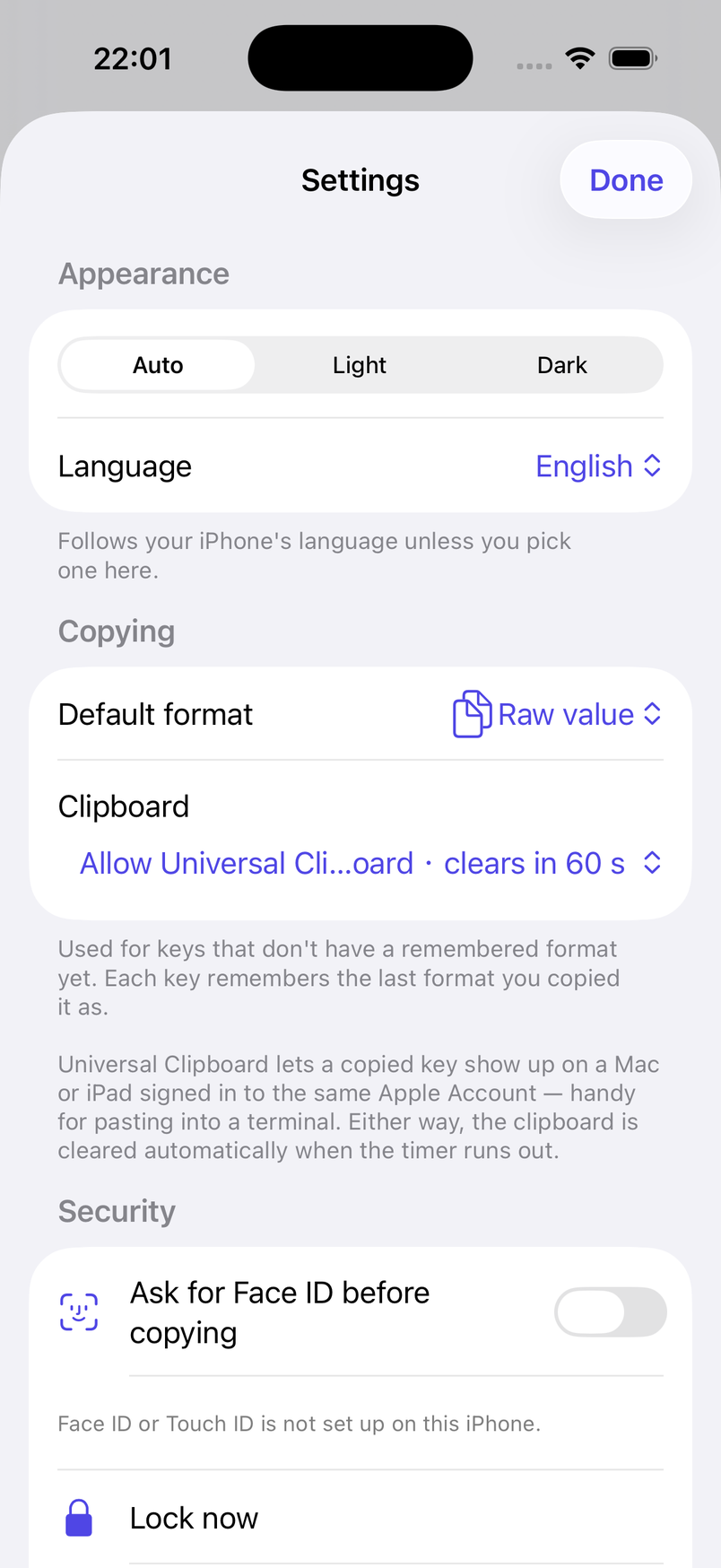
Under Me › Settings: Appearance — theme (auto, light, dark) and language (follow system, English, 繁體中文). Copying — the Default format for keys that haven't remembered one, and the Clipboard policy: Universal Clipboard with a 60-second timer, or this iPhone only with a 30-second one.
Security — whether to ask for Face ID before copying (on by default when the iPhone has it), the Ask again grace period, Lock now, the Safety net, Advanced encryption with the key status and strict mode, and Hide masked values. Backup reminder — on or off, counted in days or launches, with the date of your last export.
Trash — deleted keys wait 7, 30 or 90 days (30 by default) or until you empty it, and can be restored meanwhile. Data › Erase all data deletes every key, project, the trash and the encryption key on this iPhone after you type DELETE; exported backups are untouched. About has the version, this website, support, and the Encryption & export compliance page.
Frequently asked questions
Is there a Mac or iPad version? No. BABEL TOKEN is built for iPhone only. Your Mac gets keys over Universal Clipboard, and .env, JSON and backup files travel through Files, AirDrop or iCloud Drive.
Does it check whether my keys still work? No, and it can't: the app has no networking code. It doesn't validate keys, fetch model lists or balances, or notice a revocation at the provider. Expiry and rotation reminders come only from the dates you enter; revoking happens in the provider's console, then you mark the key revoked here.
I lost my phone. What now? First revoke the keys at their providers, as you would for any device you no longer control. Then on the new iPhone: restore from an encrypted computer backup or iCloud Backup and the Keychain entry usually comes with it; otherwise unlock with your master password or recovery phrase, or restore a .babeltoken file. If none of those exist, the secret values are gone — we hold no copy.
Why isn't there a master password? Because you would type it every day to solve a problem that only exists on a new device. The data key is random, lives in the Keychain and is guarded by Face ID; a master password and a recovery phrase are there as an optional safety net for the device change. Nothing stops you setting both on day one.
Can I keep passwords in it? It isn't a password manager: no website logins, no autofill, no passkeys. It stores the kind of credential a program uses. For passwords, 8PWD from the same company — www.8pwd.com — does that job with the same offline, no-account approach.
Which formats does it read and write? In: single pasted keys, KEY=VALUE lines, .env files, flat JSON dictionaries, and .babeltoken backups, plain or encrypted. Out: the six copy formats, a .env per project, a plaintext JSON of everything, and the .babeltoken backup, which the app can read back later.